
How to Use the Claude PowerPoint Plugin:
The Complete 2026 Guide

Documami expert
It's 9 PM. Your client presentation is due at 8 AM. You have a blank deck, a pile of research notes, and a corporate template that punishes anyone who strays from the brand guide. Sound familiar?
That scene is exactly what Anthropic had in mind when it launched the Claude PowerPoint plugin on February 5, 2026 - an official AI add-in that lives directly inside Microsoft PowerPoint, reads your slide master, and builds presentation-ready slides without you ever copying and pasting from another tool.
I've been testing it across multiple real decks over the past two months, from quick internal updates to full investor pitch decks. This guide covers everything: what the plugin actually does, how to install it in under two minutes, the 10 prompts I rely on most, honest pricing comparisons, and the limitations you need to know before you commit. Whether you're evaluating it against Microsoft Copilot or you're already sold and just want to get more out of it, you're in the right place.
What Is the Claude PowerPoint Add-In and What Makes It Different?
The Claude PowerPoint plugin is an official Anthropic add-in available from Microsoft AppSource. It lives as a sidebar panel inside the PowerPoint desktop app (Windows and Mac) and the PowerPoint web version. You type what you want in natural language; Claude builds it directly into your deck.
That description sounds like every other AI presentation tool ever made. Here's what actually separates it: Claude reads your slide master before it does anything.
Your fonts, color scheme, layouts, and formatting rules - the AI studies all of it before generating a single slide. When it creates content, it uses your brand elements, not its own idea of what a professional deck looks like. As Anthropic describes it, the plugin delivers "intelligent, template-aware assistance" - a description that happens to be accurate.
Practically, this means the slides that come out look like your slides. Not AI-flavored slides dropped into your template and then reformatted by hand. One marketing professional who tested it put it well: "No off-brand fonts, no rogue colour choices, no last-minute style guide checks." (Market Smarter With AI, March 2026)
The other thing worth knowing: output is native PowerPoint. Claude generates editable shapes, charts, SmartArt diagrams, and process flows - not images. You can click into any chart and modify the data. Every shape responds to PowerPoint's own tools. This is a significant difference from tools like Gamma, which produce beautiful-looking output that can be awkward to edit once exported to .pptx.
A quick history (so you understand where it stands today)
- October 2025: Anthropic launches Claude for Excel as a research preview
- February 5, 2026: Claude for PowerPoint launches alongside Claude Opus 4.6 - initially for Max, Team, and Enterprise plan users
- February 20, 2026: Access expands to Pro plan users ($20/month)
- March 11, 2026: Major update - Shared Context between Excel and PowerPoint, Skills feature, MCP Connectors (PitchBook, S&P Global, FactSet, Google Drive, Gmail, and more)
- April 2026: Still in beta / research preview on all paid plans
That beta status matters, and we'll come back to it in the limitations section. But it also means the product is improving fast - VentureBeat noted that the March update represented a significant expansion of enterprise capabilities, adding cross-app context sharing that competitors haven't matched.
The three ways to use Claude for presentations
Before going further, it helps to understand that the PowerPoint add-in is one of three ways Claude can build presentations. Knowing which tool to reach for saves a lot of time:
1. The add-in (in-PowerPoint) - the focus of this guide. Best for template-compliant editing, spot changes, and iterative refinement inside your actual deck.
2. Claude chat / browser - you can ask Claude to generate a .pptx file through the standard chat interface. It uses code execution to produce a downloadable file. Less template-aware, better for quick first drafts when you don't have a brand file handy.
3. Claude Cowork - an autonomous desktop agent that researches, writes, and builds a full .pptx and saves it to your filesystem. Best for generating content-heavy first drafts from scratch, particularly when research is involved.
The best workflow most professionals land on: use Cowork to research and generate the first draft, then open it in PowerPoint with your corporate template and use the add-in to refine it. We'll walk through that in the Advanced Workflows section.
How to Install the Claude PowerPoint Plugin: Step-by-Step
Installation takes about two minutes. Here's what you need and how to do it.
What you need first
- A paid Claude account: Pro ($20/mo), Max ($100/mo), Team, or Enterprise
- Microsoft PowerPoint desktop (Windows or Mac) or PowerPoint on the web
- An active internet connection (the add-in is cloud-based; no offline mode)
The add-in itself is free to download from Microsoft AppSource - you only need a paid Claude account to activate and use it.
Individual installation
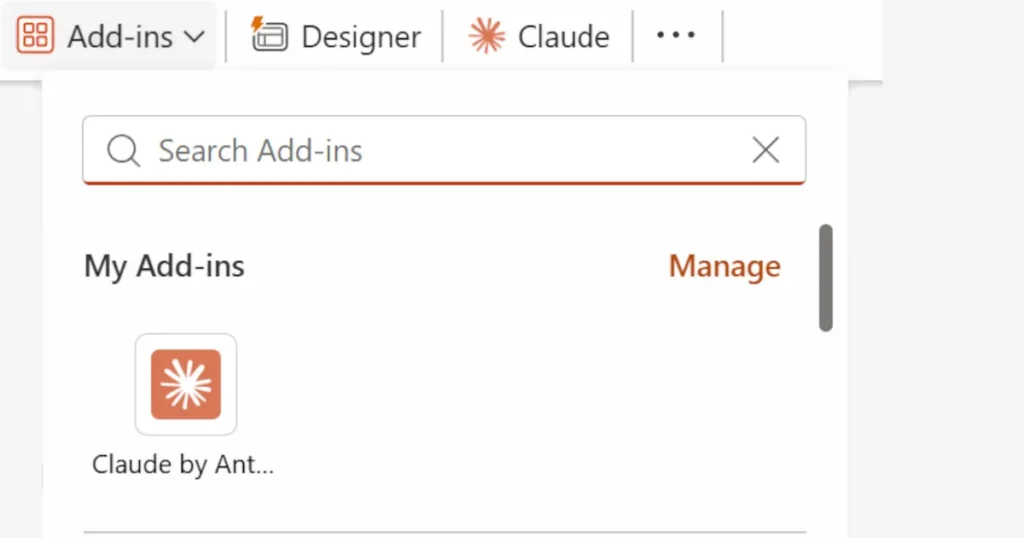
Step 1. Go to Microsoft AppSource and search "Claude by Anthropic in PowerPoint" - or open PowerPoint and navigate to Insert → Add-ins → Store and search "Claude".
Step 2. Click "Get it now" and follow the prompts to authorize the add-in with your Microsoft account.
Step 3. Open PowerPoint. You'll see Claude in the Home ribbon. On Mac: go to Tools → Add-ins. On Windows: Home → Add-ins.
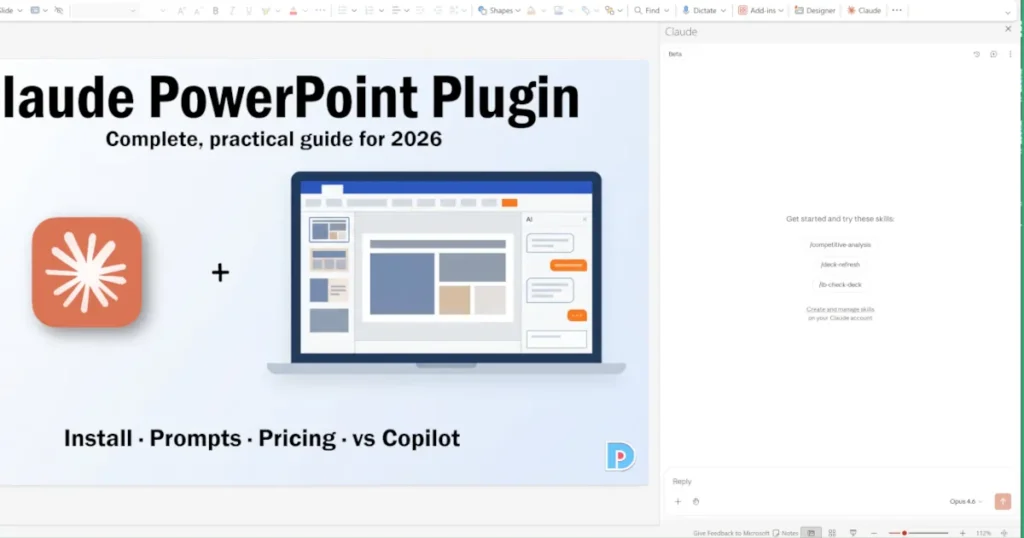
Step 4. Click the Claude icon to open the sidebar panel. Sign in with your Anthropic account credentials when prompted.
Step 5 (critical). Before prompting anything, open or load your branded PowerPoint template. Claude reads the slide master when it activates. Starting without your template means starting without your brand.
As Anthropic's official support documentation explains: "Start with a client or corporate template already loaded. Describe what you need, and Claude generates slides using the correct layouts, fonts, and colors from the slide master."
Enterprise / team deployment
For organizations deploying to multiple users:
- Go to the Microsoft 365 Admin Center
- Navigate to Settings → Integrated Apps → Add-ins
- Search "Claude by Anthropic in PowerPoint" in AppSource
- Deploy to your organization or specific user groups
Rollout typically takes minutes, with a maximum of 24 hours for full org visibility. Users see Claude appear in their PowerPoint Home ribbon automatically - no individual installation required.
For organizations that route API traffic through an internal LLM gateway, the add-in also supports direct connections to Amazon Bedrock, Google Cloud Vertex AI, and Microsoft Foundry - no per-user Claude account needed. This is the same deployment pattern used by Claude Code, so if your org already has that infrastructure, setup is straightforward.
A security note before you proceed: Only use the add-in with internal, trusted PowerPoint files. Anthropic's security documentation explicitly warns about prompt injection attacks - a risk where external or downloaded templates contain hidden instructions embedded in the file that try to trick the AI. Don't use it with templates downloaded from unknown sources or files received from external parties you don't fully trust.
What the Claude PowerPoint Plugin Can Actually Do
Template-aware slide generation
The core feature: describe what you want in plain language, and Claude builds slides that match your existing deck.
You can start from scratch ("create a 10-slide market entry strategy for a Series B investor audience") or work within an existing presentation ("add a market sizing section after slide 4, using TAM, SAM, SOM"). In both cases, Claude reads the slide master - fonts, color scheme, layouts - and uses that structure throughout.
One important caveat from real-world testing: Deckary's review team, which tested the add-in across 35+ presentations over eight weeks, found that complex or heavily customized templates can produce formatting drift. Standard, well-structured slide masters work best. Always review output before sending anything to a client.
Context-aware editing
Select any slide or object, and Claude operates only on that element while preserving everything around it. This is where the plugin saves most of its time in daily use.
Practical examples of what you can do with a selected slide:
- Rewrite a title to be more impactful
- Convert a text-heavy slide into a process flow diagram
- Simplify dense bullet points to a single key message
- Translate the slide into another language
- Restructure the narrative flow across a section
The charts and diagrams Claude generates are not images - they are native PowerPoint objects. As one power user described it: "I mean it creates native PowerPoint objects - editable charts, SmartArt diagrams, process flows - that you can click into, modify data points, change colors, and animate just like anything you'd build manually."
Model switching: Opus 4.6 vs Sonnet 4.6
The add-in lets you switch between Claude's two current models. Understanding the difference matters for managing your usage limits:
Opus 4.6 is Claude's most capable model. Use it for full deck generation, complex narrative restructuring, and anything where reasoning quality determines the output quality. It draws more from your session allocation.
Sonnet 4.6 is faster and lighter. Use it for spot edits, formatting fixes, copy rewrites, and speaker notes. It conserves your usage limits for when you actually need them.
The practical rule every experienced user lands on: "Use Opus for big lifts and Sonnet for everything else." (AI Tool Analysis, February 2026) We'll come back to why this matters in the pricing section.
Skills and reusable workflows
Skills are saved, repeatable workflows you can trigger from the add-in sidebar with a "/" command.
If your team builds the same types of deck repeatedly - quarterly reviews, campaign briefs, client check-ins - you can encode the best version of that process as a Skill. Anyone on the team can then run it in one click without re-explaining the format, tone, or data sources each time.
You can also set persistent Instructions in the add-in sidebar: brand guidelines and preferences that apply to every conversation in PowerPoint. Things like "always use one-line bullets," "use the blue accent for data callouts," or "our narrative always builds to a recommendation, not a summary." These save you from repeating yourself every session.
Shared context with Excel and MCP connectors
Since the March 2026 update, Claude maintains a continuous conversation across the Excel and PowerPoint add-ins in a single session.
In practice, this means a financial analyst can ask Claude to pull comparable company data from an open Excel workbook, build a trading comps table, then switch to PowerPoint and drop the valuation summary into a pitch deck - all without re-explaining the dataset. Anthropic described this exact workflow in their launch announcement.
The MCP connector ecosystem extends this further: S&P Global, PitchBook, LSEG, Daloopa, FactSet, Moody's, Google Drive, Gmail, and others can feed live data directly into your presentations. One tester using the connector with his CRM described creating a quarterly review slide using live metrics from his dashboard - a deck that would have taken hours built in under 20 minutes. (Mejba Ahmed, April 2026)
10 Claude PowerPoint Prompts That Actually Work
These are the prompts I use regularly, along with the reasoning that makes them effective. A few setup tips first:
Before prompting anything: load your branded template and set the Instructions field with your recurring preferences. Select a specific slide when you want targeted changes - Claude uses the selected slide's layout as a reference even if it differs from the slide master.
Model choice: use Opus for prompts 1–5 (high generation complexity), Sonnet for 6–10 (editing and refinement).
Prompt 1 - Full deck from a brief
"Create a 12-slide investor pitch for [Company], targeting early-stage VCs. Include: problem, solution, market size (TAM/SAM/SOM), business model, traction, team, and ask. Use our loaded template."
Why it works: Opus reasons through narrative structure before building slides. Specifying slide count and required sections prevents Claude from padding the deck or omitting critical content.
Prompt 2 - Narrative restructure
"Read this deck and tell me if the storyline makes sense. Then reorder the slides so the presentation builds clearly to the recommendation on slide 10."
Why it works: Claude reviews the full context before acting. Asking it to "tell me first" before making changes gives you a checkpoint to approve before slides move.
Prompt 3 - Bullets to visuals
"Convert the bullet points on slide 4 into a native PowerPoint process flow diagram using our brand colors. Keep the text accurate but make it visual."
Why it works: This is one of the highest-leverage uses of the add-in. Slidor's research found this to be among the most consistent time-savers - tasks that previously required 30 minutes of manual SmartArt work happen in a single prompt.
Prompt 4 - Action titles
"Rewrite every slide title in this deck as a single-sentence action title that states the key takeaway. For example, change 'Market Analysis' to 'Our TAM of $4B is underpenetrated by current solutions.'"
Why it works: Action titles are one of the most recognized consulting and communications best practices. Claude applies them consistently across the whole deck, something nearly impossible to do quickly by hand.
Prompt 5 - Market sizing section
"Create a market sizing section with TAM, SAM, and SOM. Use the next available slide layout from our master. Base the sizing on [paste your data or source URL]."
Why it works: Giving Claude specific data or a URL to reference produces grounded output rather than placeholder text.
Prompt 6 - Speaker notes at scale
"Write detailed speaker notes for every slide. Each note should include: the key message in one sentence, 2–3 talking points, and a natural transition to the next slide."
Why it works: As Slidor notes, Claude reads the slide content and builds notes that match the narrative flow - transition sentences included. Switch to Sonnet for this prompt; it doesn't require deep reasoning, so save Opus for content-heavy work.
Prompt 7 - Slide simplification
"Slide 6 is too dense. Simplify it to one key message and two supporting data points. Keep the formatting intact."
Why it works: Explicitly asking Claude to "keep the formatting intact" and selecting the slide before prompting prevents it from over-redesigning.
Prompt 8 - Agenda and section dividers
"Create an agenda slide that reflects the current deck structure. Then add section divider slides before each major topic, with the agenda repeated and the current section highlighted."
Why it works: This replaces what is typically a tedious, repetitive manual task. Claude generates the agenda from the actual deck content, so it stays accurate even if you later reorder sections.
Prompt 9 - Company overview from a URL
"Go to [URL] and create a 3-slide company overview using our template. Include: what they do, key metrics or traction, and why it's relevant to our audience."
Why it works: The add-in can browse web pages. For competitive analysis, prospect research, or partner overviews, this compresses research-and-slide creation into a single step.
Prompt 10 - Competitive comparison table
"Build a side-by-side competitor comparison table on a new slide. Compare [Company A], [Company B], and [Company C] across: pricing, key features, target market, and our main differentiator. Use our brand colors."
Why it works: Comparison tables are one of the most common slides in sales and strategy decks, and one of the most tedious to build manually. Claude handles both the research (if given sources or web access) and the formatting in one go.
Claude PowerPoint Pricing: Which Plan Do You Actually Need?
Here's the straightforward breakdown - including the part most articles don't mention clearly enough.
| Plan | Cost | PowerPoint add-in? | Best for |
|---|---|---|---|
| Pro | $20/month | Yes | Occasional presenters (1–2 decks/week) |
| Max | $100/month | Yes | Daily deck builders; heavy Opus use |
| Team | $25/seat/month | Yes + admin deployment | Teams needing org-wide access and Skills |
| Enterprise | ~$60/seat/month | Yes + LLM gateway | Large orgs, cloud compliance requirements |
The usage limit reality check
The most important thing to understand about pricing: all PowerPoint usage draws from your regular Claude session allocation. It's not a separate pool.
In practice, generating a full deck on the Pro plan can consume roughly 30% of your session usage, according to Plus AI's testing. A minor edit like changing a font color consumed around 18% of their session. Heavy Opus 4.6 use compounds this quickly.
The strategic response: use Sonnet for all editing and refinement, reserve Opus only for initial deck generation. AI Tool Analysis describes the practical budget as: "$20/month for occasional use, $100/month if you build presentations daily."
How does it compare to Microsoft Copilot's price?
Microsoft Copilot for PowerPoint costs $30/month as an add-on on top of your existing Microsoft 365 subscription. It also caps prompts at 2,000 characters - a meaningful constraint if you're writing detailed presentation briefs. Claude Pro at $20/month has no prompt length cap.
If you're already paying for Claude for other work, the add-in is simply included - no additional cost. The calculus changes if you'd be subscribing to Claude solely for the PowerPoint integration.
Claude vs Microsoft Copilot for PowerPoint: Which Is Better in 2026?
This comparison is based on independent testing using the same brief across both tools: "Create a 5-slide quarterly business review covering revenue data, customer acquisition metrics, key wins, challenges, and next quarter priorities."
Head-to-head
Template compliance: Claude wins. It reads your full slide master before generating anything. Copilot applies its own design choices more aggressively. For brand-conscious teams, this is the most practically important difference. AI Tool Analysis described Claude as dominating here: "Claude dominates on template compliance and content quality - the two things that matter most for brand-conscious teams."
Content quality and reasoning depth: Claude wins, particularly for complex narrative decks. Opus 4.6's long context window (up to 1 million tokens) can process an entire report and build a presentation from it. Copilot produces serviceable drafts faster, but the reasoning quality and structural logic of Claude's output is consistently stronger in independent testing.
Generation speed: Copilot wins for simple decks. Claude can be slower, especially on Opus. If you're building quick internal updates and have a Copilot license, it may be faster.
Prompt depth: Claude wins. No character limit. Copilot caps prompts at 2,000 characters, which is restrictive for detailed briefs - as noted in Deckary's testing.
Enterprise governance: Copilot wins, clearly. Copilot has full audit logs, enterprise compliance integration, and Microsoft 365 Graph access (pulling from your emails, calendar, Teams). Claude's add-in has none of these as of April 2026. For organizations with compliance requirements, this is a hard constraint.
Pricing: Claude wins at the individual level ($20/month vs $30/month + M365 subscription).
What about other alternatives?
Plus AI offers unlimited generation, works in both PowerPoint and Google Slides, and is faster. It lacks Claude's reasoning depth, but for teams that need volume over nuance, it's worth comparing. Plus AI's own review provides a detailed side-by-side.
Gamma produces visually impressive web-native presentations and is fast at generation. Its key limitation: exporting to .pptx can introduce formatting issues, and it doesn't work inside PowerPoint. For standalone web presentations, it's excellent. For PowerPoint-native workflows, it adds friction.
Patrick Schaber's real-world test (Substack, March 2026) comparing Claude and Gamma directly found that Gamma produced more visually polished initial output, but Claude followed his structural instructions more faithfully and was easier to iterate on within PowerPoint.
The verdict
Choose Claude if: you're already a Claude subscriber, template compliance is a priority, you work with complex content that requires reasoning (strategy, finance, consulting), or you frequently build decks from research-heavy briefs.
Choose Copilot if: you're deeply embedded in Microsoft 365, compliance and audit logging are non-negotiable, or you need the full cross-app context that M365 Graph access provides.
Choose Plus AI if: you use Google Slides alongside PowerPoint, or you need unlimited generation without managing usage limits.
Current Limitations of the Claude PowerPoint Plugin (April 2026)
This section exists because you should know what you're getting into before committing your workflow to a beta product. Most articles gloss over this. We won't.
30MB file size limit. Large presentations with embedded images, video thumbnails, or high-resolution brand assets can hit this ceiling. Plan accordingly for media-heavy decks.
No chat history between sessions. Every time you open the add-in, you start fresh. Claude reads your current deck's content, but has no memory of previous conversations about it. This resets context you may have established in prior sessions. (Anthropic's support documentation)
No audit logs. Enterprise administrators cannot track what was generated or changed through the add-in. It's also excluded from Anthropic's Compliance API. For organizations where auditability is required, this is a meaningful gap. Plus AI's review flags this directly: "As of April 2026, the Claude PowerPoint add-in is in beta. That means it's missing some features you might expect, especially if you're using it with an enterprise team."
Missing chart types. Waterfall charts, Gantt charts, and Mekko charts are absent. For consulting, finance, and project management use cases where these are standard deliverables, this is a significant gap. Deckary's consulting-workflow review flagged this as the primary reason the tool isn't yet ready as a primary workflow for consulting-grade work.
Complex templates may drift. Claude reads the slide master and makes a best effort, but with complex or heavily customized templates, formatting inconsistencies can appear. Always review output carefully.
No Google Slides support. The add-in works with PowerPoint desktop and the PowerPoint web version only.
Usage shares your Claude quota. As covered in pricing: your session allocation is shared across all Claude usage. Heavy PowerPoint work can crowd out other tasks.
Beta stability. It's a research preview. Occasional errors and unexpected behavior are part of the deal right now. One commonly reported error: "Claude reached its tool-use limit for this turn" when building longer decks, requiring you to prompt it to continue.
What to expect next
Based on how Anthropic evolved Claude for Excel after its October 2025 launch, the most likely near-term improvements are: stability fixes, expanded chart type support, and initial enterprise compliance features (audit logs, Compliance API integration). The AI Tool Analysis forecast notes that a February 2026 Anthropic webinar featured enterprise customers RBC Capital Markets and D.E. Shaw, signaling that compliance infrastructure is on the roadmap.
Advanced Workflows: Claude Cowork + the PowerPoint Add-In
Once you're comfortable with the basics, these two workflows are where the real time savings happen.
Workflow 1: Research → draft → refine
This is the most powerful end-to-end workflow for content-heavy presentations.
Step 1 - Research with Cowork. Open Claude Cowork (the desktop app), describe what you need: "I need a 10-slide presentation on AI adoption in industrial manufacturing for a CFO audience. Research the topic using at least 5 sources, prioritize 2025–2026 data, and save a research brief before touching any slides." Cowork browses the web, organizes findings, and builds a first-draft .pptx saved to your filesystem.
Step 2 - Apply your template. Open the draft in PowerPoint and apply your corporate template.
Step 3 - Refine with the add-in. Use the Claude sidebar to reshape the narrative, enforce your action titles, convert bullet-heavy slides to visuals, and add speaker notes. The add-in now works within your brand.
The SlideSpeak team documented this exact workflow: "The best combo: use Cowork to do the research and generate a first draft .pptx, then open it in PowerPoint and use the Claude add-in to refine, reformat, and polish it within your corporate template."
Workflow 2: Excel → PowerPoint for financial presentations
Since the March 2026 shared context update, this workflow is remarkably smooth.
Open your financial data in Excel with the Claude add-in active. Ask Claude to build out a model, run analysis, or create a summary table. Then switch to PowerPoint in the same session - Claude retains the full context of your Excel work and can pull data directly into slides without you re-explaining what you were analyzing.
Anthropic's own example: "A financial analyst can ask Claude to pull comparable company financials from an open workbook, build out a trading comps table in Excel, drop the valuation summary into the pitch deck, and draft the email to the MD - without switching tabs or re-explaining the dataset at each step."
Workflow 3: Team-wide consistency with Skills
For teams that build the same deck types repeatedly, Skills eliminate the setup overhead that kills consistency.
Create a /quarterly-review Skill that knows your company's format, required sections, approved data sources, and tone. Every team member runs it from the sidebar with one click. New hires get the same output quality as your most experienced deck-builders from day one.
Pair this with the Instructions field - set your brand rules once, and they persist across every PowerPoint session. Anyone on the team who opens the add-in works within the same framework automatically.
Final Verdict: Is the Claude PowerPoint Plugin Worth It?
For most professionals who are already Claude subscribers, yes - and the math is straightforward. If you're on Pro and you build one or two presentations per week, the add-in adds meaningful time back to your workweek at no extra cost. The template awareness alone makes it stand apart from generic AI slide generators.
If you're considering a Claude subscription specifically for the PowerPoint integration, weigh it honestly. Heavy daily users will likely need the Max plan ($100/month) to avoid usage limits mid-deck. The missing chart types (waterfall, Gantt, Mekko) and absent audit logs make it not-yet-ready for consulting-grade workflows or compliance-sensitive enterprise deployments. For those use cases, the product will need to exit beta first.
The beta trajectory is encouraging, though. The evolution of Claude for Excel - from a limited October 2025 preview to a substantially more capable tool by early 2026 - suggests the same path for PowerPoint. Audit logs and specialized chart types are likely to arrive within the year.
The practical test is simple: if you build presentations in PowerPoint and you care about your brand template, install the add-in and spend 20 minutes with it. The quality of the first deck it builds for you inside your actual corporate template will tell you whether it belongs in your workflow.
Get started: Claude for PowerPoint on Microsoft AppSource | Claude pricing | Official setup guide
This guide was written based on hands-on testing of the Claude PowerPoint add-in across multiple real presentations, combined with analysis of independent reviews and Anthropic's official documentation. All pricing and feature information reflects the state of the product as of April 2026. We update this guide when significant product changes occur - check the "Last updated" date at the top.
Frequently Asked Questions
Is the Claude PowerPoint plugin free?
The add-in is free to download from Microsoft AppSource. Using it requires a paid Claude account. The minimum plan is Pro at $20/month. There is no free tier for the PowerPoint integration.
Does it work with Google Slides?
No. As of April 2026, the add-in supports Microsoft PowerPoint desktop (Windows and Mac) and the PowerPoint web version only. If Google Slides is part of your workflow, consider Plus AI, which covers both.
Will Claude change my existing slide formatting?
Claude reads and respects your slide master. It will not introduce off-brand fonts or colors from that template. For complex or highly customized templates, minor formatting drift can occasionally occur – always review output before sharing.
What's the difference between Opus 4.6 and Sonnet 4.6 for slide work?
Opus 4.6 produces higher-quality output for complex tasks like full deck generation, narrative restructuring, and content-heavy briefs. Sonnet 4.6 is faster and uses less of your session allocation – it’s the right choice for spot edits, speaker notes, copy rewrites, and formatting tasks.
Does Claude save my presentation history?
No. Chat history is not saved between sessions. Each time you open the add-in, Claude reads your current deck fresh but has no memory of previous conversations. Data is deleted from Anthropic’s backend within 30 days of the session.
Can my whole team use the add-in?
Yes. Admins can deploy it org-wide through the Microsoft 365 Admin Center. Team and Enterprise plans support shared Skills and centralized administration. For LLM gateway environments (Bedrock, Vertex AI, Foundry), users don’t need individual Claude accounts.
Is it better than Microsoft Copilot for PowerPoint?
It depends on your priorities. Claude wins on content quality, reasoning depth, template compliance, and price. Copilot wins on enterprise governance (audit logs, Compliance API, Microsoft 365 Graph access) and speed for simple decks. If compliance is a hard requirement, Copilot is currently the safer choice for enterprise deployment.